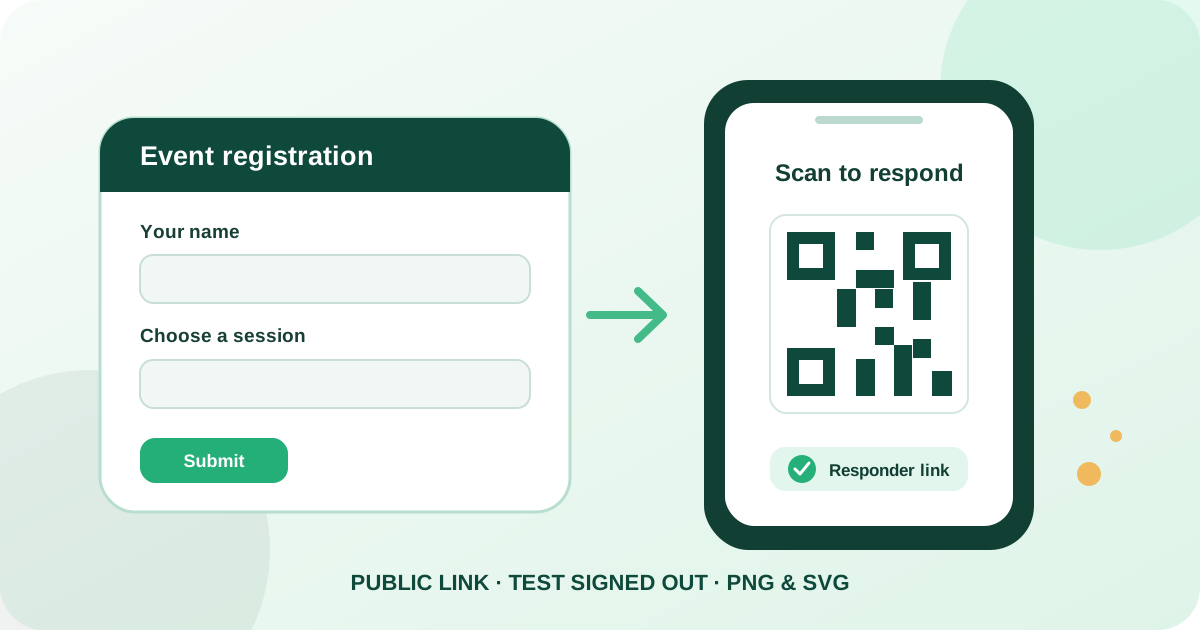
Connect scanners to the responder form
To create a QR code for a Google Form, publish the form, copy its responder link rather than its editor link, paste that URL into a Google Forms QR generator, scan the preview while signed out, and download PNG or SVG. The finished code should open the page where your intended audience can answer the form—not the private workspace used to build it.
Qraftt validates supported forms.gle and public Google Forms destinations and generates the static code locally without signup. The downloaded QR stores the Google URL directly and does not depend on a Qraftt redirect. Respondents need internet access, and Google’s publishing, access, login, and response settings still determine who can open and submit the form.
Open the Google Forms QR generator — Paste a responder URL, customize the design, and export PNG or SVG.
Explore the QR code generator — Compare Google Forms with all 30 supported static QR formats.
How to create a Google Form QR code step by step
First, finish the form’s questions, confirmation message, response settings, and audience permissions. Publish the form and choose who may respond. If it should be open broadly, verify that the selected access option allows the intended public or link-based audience rather than only named people, a school, or an organization.
Second, use Google Forms’ Preview, Share, or Published controls to copy the responder link. A shortened forms.gle URL or a public viewform URL can be appropriate. Do not copy the browser address from the editing screen or share an editor/collaborator link, because it can expose the wrong interface or deny access to ordinary respondents.
Third, paste the respondent destination into Qraftt and scan the live preview. Test in a private browser window or a signed-out profile, complete a sample response when appropriate, and confirm the expected submission message. Customize the code with strong contrast and a clear quiet zone, download the final file, and test the actual printed or displayed version.
- Publish the form and configure responder access.
- Copy the responder link, not an editor or admin URL.
- Test access while signed out and on a mobile device.
- Download and verify the final PNG or SVG at its intended size.
Choose and verify the correct Google Forms link
Google Forms can expose different links for editing, collaborating, previewing, responding, and viewing prefilled answers. For a general QR code, use the responder destination copied from the form’s sharing or publishing controls. The URL commonly uses forms.gle or ends in a Google Forms viewform path, although Google may change the visible routing over time.
A prefilled link is useful when selected answers or identifiers should already appear, but those values become part of the URL and therefore part of the QR code. Do not prefill confidential student, customer, health, payment, or attendance information in a code displayed publicly. Test that every prefilled value lands in the intended question after later form edits.
Open the destination while signed out before printing. Confirm the form title, owner or organization context, intended audience, response availability, and submission behavior. If the page asks for access, displays an editing interface, or says the form is unpublished or closed, correct the Google settings or link before generating the final QR code.
Survey, registration, event, and school use cases
Surveys and feedback forms can be linked from receipts, service counters, product inserts, workshops, or community displays. Explain what feedback is being requested, who receives it, and roughly how long the form takes. A QR code makes the form easier to reach but should not disguise the destination or pressure someone to submit.
Registration forms work on invitations, venue signs, flyers, and event check-in material when capacity, deadlines, eligibility, and confirmation details are clear. For schools, a code can open a quiz, permission form, resource request, or classroom survey, but access settings and privacy practices should match the age group, institution, and audience.
For repeated campaigns, keep the form at the same responder URL when possible. You can update questions or instructions behind a stable link, but major edits may affect prefilled fields, collected responses, or audience expectations. Retest the complete flow after every meaningful form or permission change.
- Customer feedback and post-service surveys.
- Event registration, attendance, and session questions.
- School quizzes, classroom check-ins, and permission workflows.
- Volunteer, membership, booking, and information requests.
Print and place the form QR code effectively
Match the physical size to the scanning distance. A handout or badge used at arm’s length can use a smaller code than a poster viewed across a room. Preserve the quiet zone, use dark modules on a light background, and keep the code away from folds, perforations, curved surfaces, reflective glare, and visually busy photography.
Add concise context beside the code, such as “Register for the workshop” or “Complete the two-minute survey.” Include the closing date or eligibility requirement when relevant so people do not scan an expired campaign. Where participation is important, provide a short readable URL or accessible alternative for people who cannot scan.
Test with the venue’s actual connectivity and representative phones. A valid code can appear broken when mobile reception is weak, guest WiFi requires another login, or a restricted device blocks Google services. Check permanent signs regularly and remove codes promptly when a form closes.
Privacy and static QR code limitations
The QR code contains the Google Form URL, including any prefilled query values. Anyone who can scan or decode a public code can read that destination, so do not embed secret access tokens or sensitive prefilled information. Responses are submitted to Google Forms under the form owner’s settings and policies; Qraftt does not receive or store them through the generator.
Because the code is static, Qraftt cannot replace its destination after download. Editing questions behind the same responder URL may preserve a printed code, while changing to a different form or URL requires a new QR code. Qraftt does not provide dynamic redirects, response analytics, or control over Google’s access and retention behavior.
Tell respondents what information is collected, why it is needed, who can access it, and whether signing in is required. Avoid collecting unnecessary personal data, especially from students or public-event attendees, and follow the privacy obligations that apply to your organization and audience.
Common Google Form QR code mistakes
The most common link mistake is encoding an editor, collaborator, or owner URL instead of the responder link. Other failures include an unpublished or closed form, organization-only access, a sign-in requirement the audience does not expect, removed responder permissions, and a deleted or replaced form.
A valid destination can still become inaccessible after printing if the owner changes sharing settings, removes the form, changes the URL, closes responses, or reaches an organizational restriction. Prefilled links can also break semantically when questions are deleted or reorganized even if the page still opens.
Weak contrast, an obstructed quiet zone, undersized printing, glare, damage, and poor connectivity can prevent or delay the journey. Test the exported QR rather than only the editor preview, complete a representative submission, and confirm the response reaches the correct form before distributing materials.
Google Form QR code FAQ
Is the Google Forms QR code generator free?
Yes. Qraftt creates customizable static Google Forms QR codes without signup, a subscription, or a mandatory payment, with PNG and SVG export.
Which Google Form link should I use?
Use the responder link copied from Preview, Share, or the published form controls. Do not use an editor, owner, or collaborator URL.
Do prefilled Google Forms links work in QR codes?
Yes, supported public prefilled responder links can be encoded. Test every preset answer and remember that the URL values can be read by anyone who decodes a public QR code.
Does scanning require internet access?
Yes. The QR code contains the Google Forms URL, but the device needs internet access to load and submit the external form.
Do respondents need a Google account?
It depends on the form settings. Public forms may allow responses without signing in, while one-response limits, restricted audiences, file uploads, or organization policies can require a Google account.
Why is my form unavailable or not accepting responses?
Check that the responder link is correct, the form is published and open, the audience has permission, sign-in requirements are expected, and the form has not been deleted, moved, or restricted.
Put it into practice