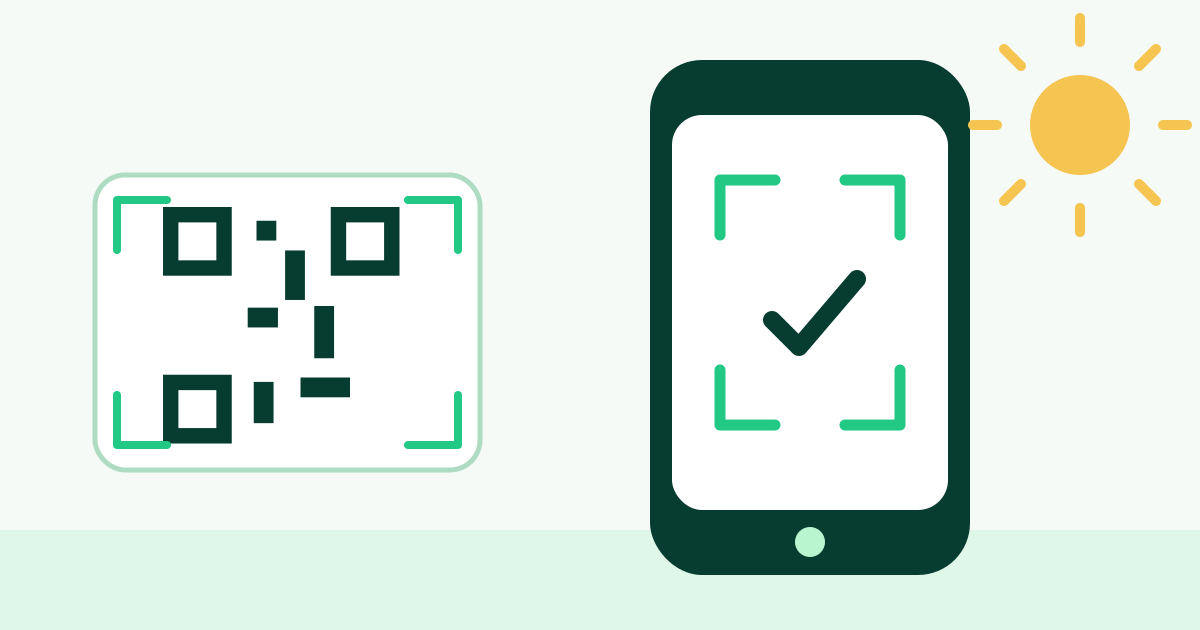
Verify the payload before styling
Start with the plain generated code and scan it using a camera or reader that lets you inspect the decoded value. Confirm every character, especially domain names, phone country codes, WiFi network names, email recipients, dates, and geographic coordinates. Validation can catch malformed input, but it cannot know whether a public destination is the one you intended.
For a URL, open the complete path and let every redirect finish. Test while signed out or in a private browser window so your own account does not hide a permission problem. For structured actions such as SMS, phone, email, calendar, and vCard, check the prepared fields before approving the action on the device.
Test the exported PNG and SVG
The live preview proves that the current browser can render the design, but the downloaded file is what will actually be published. Open the PNG and SVG independently, scan both, and compare the colors, frame, logo, quiet zone, and encoded destination with the preview.
Place the export in the real design application or document and test again. Some workflows rasterize SVG files, compress PNGs, trim transparent margins, or resample images when they are uploaded. A code that worked before layout can fail after those transformations, so treat the final composed asset as a separate test item.
Test at final physical size
Print at 100% scale using the intended dimensions. Do not rely on zooming the image on a monitor, because a screen test does not reproduce printer resolution, ink spread, paper texture, lamination, folds, or curvature. Keep the required quiet margin intact and measure the final code after any trimming or finishing.
Try the natural scanning distance. A business-card code is held close and steady; a poster may be scanned while walking or from several meters away. If the camera needs repeated attempts, increase the code size or simplify the payload and design before approving production.
- Test the smallest planned reproduction, not only the largest.
- Use the real paper, label, screen, or packaging material.
- Check that no fold, seam, cut, or fixture crosses the symbol.
- Confirm surrounding artwork does not enter the quiet zone.
Cover devices, cameras, and apps
Use more than one phone model and include both iOS and Android when they represent the audience. Older or lower-cost cameras can have more difficulty with dense modules, glare, autofocus, and low light. If the content relies on an installed app, also test what happens when that app is absent.
Different scanners can interpret structured payloads differently. A calendar reader may display times in another zone, a contact app may rearrange fields, and a desktop computer may not have a phone or SMS handler. Define the supported experience before testing so platform limitations are not confused with an invalid QR symbol.
Reproduce the real environment
Evaluate bright sun, dim rooms, backlit displays, reflective surfaces, and likely viewing angles. Mount a full-size proof where it will live. A code behind glass can reflect overhead lights; one on a curved bottle may distort at the edges; one beside a queue may be difficult to approach without blocking other people.
Check the network experience too. A code can decode perfectly while its destination loads too slowly on weak venue WiFi or mobile data. Compress web pages and linked files, avoid login-only content unless intentional, and make sure the landing page is usable at phone width.
Record and repeat the approval test
Document the payload, export filename, print dimensions, correction level, test devices, and approval date. Keep that record with the source artwork. It prevents a later edit from silently substituting a different URL, lower-resolution image, or cropped version during reprints.
Retest whenever the destination, domain, print vendor, material, placement, or visual design changes. Permanent QR signs also need periodic destination checks. The pattern may remain readable for years while the linked page, shared file, account permission, or redirect changes underneath it.
Put it into practice