Turn contact details into a saveable record
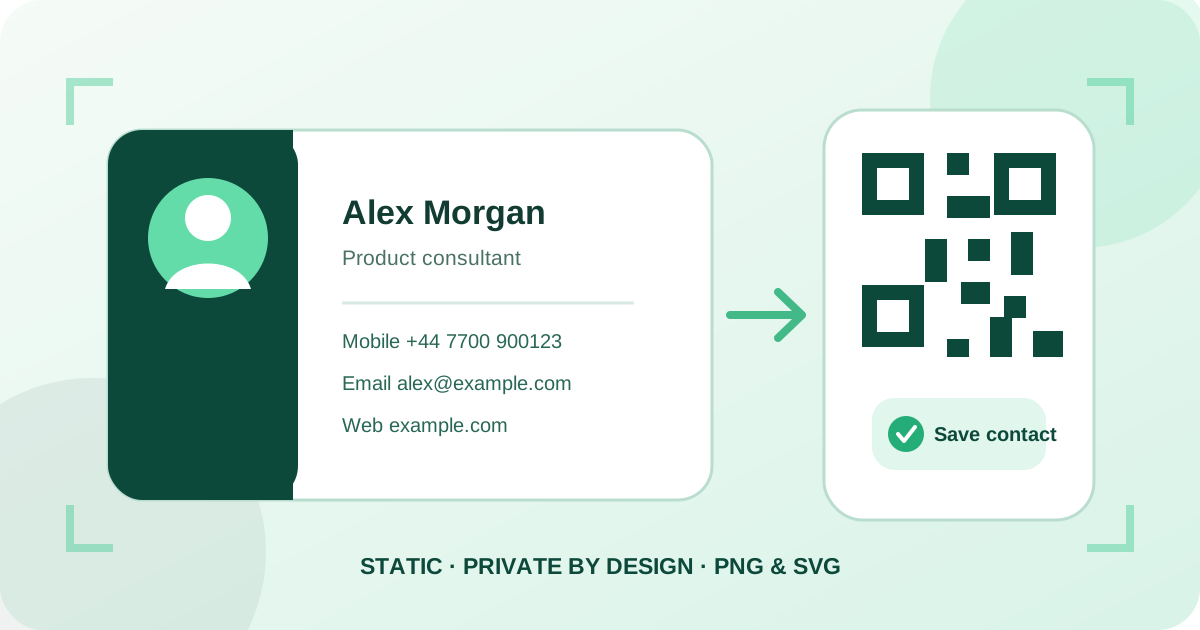
To create a vCard QR code for a digital business card, enter the contact name and the professional details you want to share, review the generated record, customize the QR design, and download PNG or SVG. On compatible scanners, the code opens a contact record that the person can review and choose to save; scanning does not add the contact automatically.
Qraftt creates a standards-based vCard 4.0 payload locally in the browser. The downloaded static QR code contains the contact data directly, so it does not need a Qraftt account, subscription, hosted profile, or redirect after download. That independence is useful for printed business cards, but it also means the encoded details cannot be edited later without generating a new code.
Open the vCard QR generator — Build the contact record, preview it, and export a customized PNG or SVG.
Explore the QR code generator — Explore all 30 static QR formats available without signup.
How to create a vCard QR code step by step
First, enter at least the first or last name exactly as it should appear in someone’s address book. Add only the mobile number, email address, company, job title, and website that belong to the intended contact. Use a role-based business email or public work number when the card will be distributed widely.
Second, format the mobile phone with its international country code so it remains useful across regions. Qraftt accepts common visual separators and checks the allowed format and 7–15 digit length, but it cannot verify that the number is real, active, or owned by the named person. Open the website and send a test email before finalizing the record.
Third, scan the live preview with more than one compatible camera or QR scanner. Confirm that the contact name, mobile label, organization, title, email, and website appear sensibly. Choose a high-contrast design, keep the quiet zone clear, then export PNG for common digital placement or SVG for scalable professional printing.
- Enter the contact name as it should be saved.
- Add and verify only the fields you intend to publish.
- Test the contact preview on representative phones.
- Download the final file and test it at its printed size.
Choose the right contact fields
A useful digital business card is selective rather than exhaustive. The name identifies the record, while the organization and job title provide context. A mobile phone supports direct contact, an email address supports longer enquiries, and a website can lead to a portfolio, booking page, or company profile. Blank optional fields are omitted from Qraftt’s payload.
The current Qraftt vCard uses the mobile-phone type for its phone field. Enter a complete international mobile number such as +44 7700 900123, then verify every digit. Use an HTTPS website address that opens publicly on mobile, and avoid editing, admin, intranet, or login-only links that recipients may not be able to access.
Different contact and scanner apps can display vCard 4.0 fields in different orders or omit labels they do not support. Special characters are escaped in the payload, but rendering still depends on the receiving software. A logo added through Qraftt’s design controls decorates the QR artwork only; it does not become a photo inside the saved contact record.
Digital business card QR code use cases
A QR code business card can supplement printed details without forcing someone to type them. Place it on a physical card with a short label such as “Save my contact,” while keeping the human-readable name, role, and at least one contact method nearby. The printed text still helps when a camera is unavailable or a scanner handles the vCard differently.
The same contact code can appear on conference badges, proposals, presentation closing slides, reception counters, product inserts, or professional portfolios. Use a person-specific vCard for individual networking and a role-based contact when staff turnover would otherwise make printed material obsolete quickly.
- Printed cards for networking and client meetings.
- Conference badges, exhibitor signs, and speaker slides.
- Proposals, portfolios, invoices, and service documents.
- Reception desks and customer-facing contact displays.
Privacy and static QR code limitations
Every contact field is encoded directly inside the QR symbol. Anyone who photographs, scans, or decodes a publicly shared card can read those details, even if they never save the contact. Do not include a private home address, personal number, confidential note, password, or any information you would not publish openly.
Generation happens locally in the browser, and the downloaded code does not depend on Qraftt. However, static independence removes remote editing: if the phone number, role, email, company, or website changes, the old printed code still contains the old record. Create a replacement and update every physical and digital placement you control.
A vCard QR code can be read without internet access because the contact data is inside the symbol. Opening the encoded website, sending email, calling, or synchronizing the saved contact may still require connectivity and suitable device services.
Common vCard QR code mistakes
Incorrect phone digits and misspelled email addresses are the most damaging content errors because format validation cannot establish that a destination belongs to the intended person. Other common problems include local-only phone formatting, a private website, an outdated job title, and publishing more personal information than the situation requires.
Design choices can also make a valid payload unreliable. Very small printing, weak foreground-to-background contrast, artwork inside the quiet zone, an oversized central logo, glossy material, or placement on a fold can slow or prevent recognition. Higher data density also requires more physical space, so remove unnecessary fields rather than shrinking a complex code.
Do not assume one successful preview scan proves the final card. Test the exported PNG or SVG on iPhone and Android where possible, inspect the proposed contact before saving, and scan a physical proof under realistic lighting and distance. Repeat the check whenever the contact information or artwork changes.
vCard QR code FAQ
Does a vCard QR code work on iPhone and Android?
Yes, on compatible scanners and contact apps. Field order, labels, and the save screen can differ between iPhone, Android, and third-party applications, so test the final code on representative devices.
Does scanning save the contact automatically?
No. A compatible scanner opens a contact record for review, and the person normally chooses whether to save it.
Can I change the contact details after printing?
No. The static QR code contains the vCard data directly. Changed contact details require a new code and replacement of existing printed copies.
Can I include a photo or logo in the saved contact?
Not with Qraftt’s current vCard payload. A logo added in the design editor appears in the QR artwork but is not embedded as the saved contact’s photo.
Is the contact information private?
No. Anyone who can scan or decode the QR code can read its embedded contact fields, so include only information intended for that audience.
Put it into practice