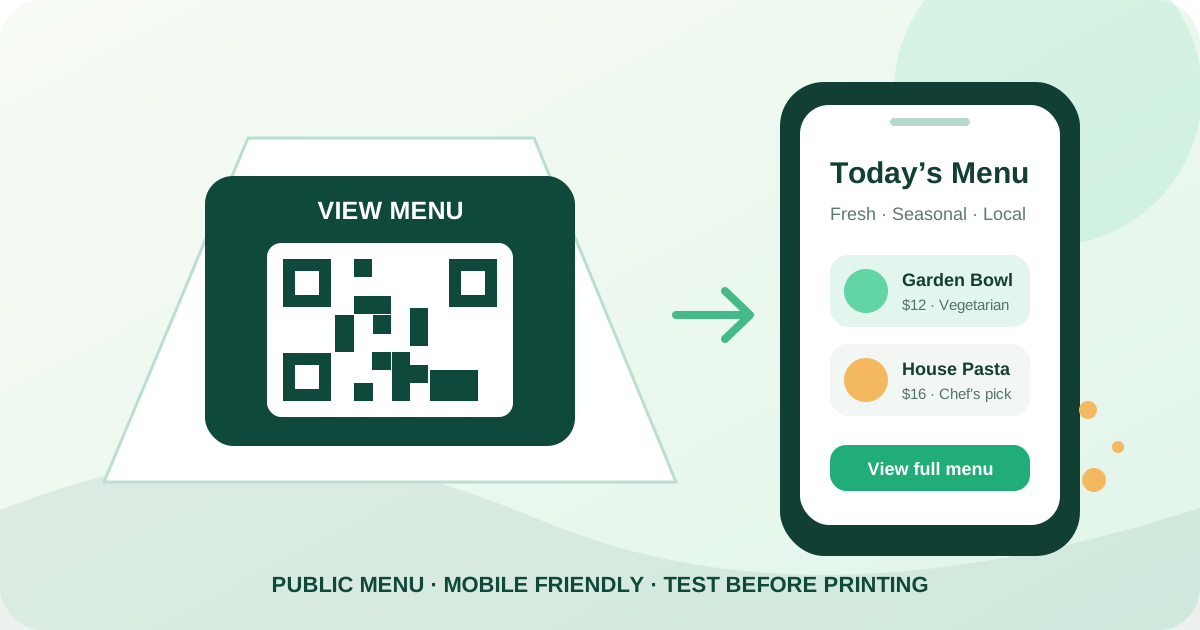
Give guests a direct route to your current menu
To create a QR code menu for a restaurant, publish the menu at a public mobile-friendly URL or PDF address, paste that destination into a menu QR generator, verify the live preview, customize the design, and download PNG or SVG. Place the finished code where guests can scan it comfortably and test the complete journey on real phones before printing in quantity.
Qraftt creates the static restaurant menu QR code locally in your browser without signup. The downloaded symbol stores your menu URL directly and does not rely on a Qraftt redirect. Guests still need internet access to load the external menu, and the destination must remain public, available, and readable on their device.
Open the Menu QR generator — Paste a public restaurant destination and customize the finished static code.
Open the PDF QR generator — Use this when your menu destination is a directly accessible PDF file.
Explore the QR code generator — Explore every static QR type available in Qraftt without an account.
How to create a restaurant menu QR code step by step
First, publish the menu on a page that anyone can open without an employee login, private sharing permission, or expiring access token. Open it in a private browser window and on mobile data to confirm that a guest outside your business network can reach it. Check current prices, availability, allergen notes, opening hours, and ordering instructions before creating the code.
Second, paste the final HTTPS destination into Qraftt’s menu generator. Scan the live preview and follow every redirect until the menu loads. Confirm the restaurant name and location so a copied link from another branch, seasonal campaign, or editing dashboard does not send diners to the wrong information.
Third, choose a restrained design with strong contrast and a clear quiet zone. Download PNG for many everyday layouts or SVG for scalable professional print. Add a short instruction such as “View menu,” print a physical proof, and scan from the distance and angle guests will actually use at the table, counter, window, or takeaway area.
- Publish a current menu at a stable public address.
- Test the destination while signed out and on a phone.
- Generate and customize the static QR code.
- Test the exported file in its final placement before rollout.
Should your QR code menu open a webpage or PDF?
A responsive web menu is usually easier to read on a phone because text, columns, images, navigation, and buttons can adapt to the screen. Restaurant staff can update items behind the same public URL, so printed static QR codes may continue pointing to current information as long as that destination remains unchanged.
A PDF menu preserves a designed page and is convenient when the restaurant already produces a print-ready document. However, multi-column pages, small typography, and large image-heavy files can force guests to zoom or wait on slow connections. Browser settings may display the PDF inline or download it, and access still depends on the file host’s permissions and response behavior.
An online-ordering page is appropriate when the desired action is ordering rather than reading alone. Test the full mobile flow, including branch selection, item availability, fees, account prompts, checkout, and regional restrictions. The QR code only opens the destination; ordering and payment remain with the external platform.
- Choose a mobile webpage for flexible layouts and frequent updates.
- Choose a PDF when preserving a document layout matters and mobile readability has been tested.
- Choose an ordering page when guests should proceed into a verified transaction flow.
Restaurant and hospitality use cases
Dining tables are the obvious placement, but a restaurant menu QR code can also help guests decide before they sit down. Use it on an entrance display, takeaway counter, hotel room-service card, food-truck window, event table, delivery insert, or outdoor sign when the destination matches the service available at that location.
Separate codes can serve genuinely different needs, such as breakfast and dinner menus, room service, drinks, catering, dietary information, or ordering. Label each purpose clearly and avoid presenting several visually identical codes without context. For multiple branches, verify that each code opens the correct venue, prices, hours, and ordering area.
- Table cards and counter displays.
- Windows, waiting areas, and queue signage.
- Hotel rooms, event tables, and catering materials.
- Takeaway packaging and delivery inserts.
Print and place menu QR codes for reliable scanning
Size the code for the expected scanning distance rather than fitting it into leftover space. A tabletop card scanned at arm’s length can be smaller than a window sign viewed from several steps away. Preserve the blank quiet zone around all four sides and keep headlines, borders, illustrations, and trimming outside it.
Use dark modules against a light solid background and avoid transparent placement over food photography or patterned materials. Matte surfaces are generally easier to scan than glossy laminates under direct lighting. Keep the code flat, away from folds and strongly curved containers, and place it where plates, glasses, condiments, or people’s hands are unlikely to cover it.
Accessibility and service quality still matter. Keep at least one readable alternative available for guests who cannot or prefer not to scan a code, and do not make critical allergen or emergency information dependent on a single device. Staff should know where the code leads and how to help when connectivity or a guest’s camera fails.
Make the digital menu readable on mobile
A successful scan is only the first step. Use legible text, short sections, clear item names, visible prices, and enough spacing for touch controls. Avoid desktop-width tables, tiny embedded PDFs, automatic audio, intrusive pop-ups, or large uncompressed images that delay the first useful content on a mobile connection.
Keep navigation predictable and make dietary labels, ingredient notes, language choices, ordering buttons, and contact details easy to find. Test common screen sizes, portrait orientation, browser zoom, dark mode where applicable, and slower connections. A fast, readable menu is more helpful than an elaborate page that makes guests pinch and scroll repeatedly.
Common QR code menu mistakes
Private cloud files, expired sharing links, login requirements, moved documents, changed domains, and branch-specific mistakes are common destination failures. A URL can be structurally valid while remaining inaccessible to guests, so always test while signed out and repeat the check after changes to hosting, permissions, menus, or ordering providers.
Slow pages, oversized PDFs, weak venue connectivity, glare, low contrast, small printing, damaged table cards, and excessive scanning distance can make a working destination feel broken. Test under the venue’s actual lighting and network conditions instead of relying only on a desktop preview in the office.
Do not assume a static code updates itself. You can revise content behind the same stable URL, but changing the destination requires generating and replacing the QR code. Maintain a list of where each code is printed and scan permanent placements regularly so outdated menus do not remain unnoticed.
Restaurant menu QR code FAQ
Is the menu QR code generator free?
Yes. Qraftt creates customizable static menu QR codes without signup, a subscription, or a mandatory payment, and supports PNG and SVG downloads.
Do guests need an app to scan a menu QR code?
Usually not. Most current phone camera apps can recognize a standard URL QR code, although older devices or restricted cameras may require a compatible scanner.
Does scanning a restaurant menu require internet access?
Yes. The QR code contains the menu address, but the phone needs internet access to load the external webpage, PDF, or ordering platform.
Should I use a webpage or PDF for my QR code menu?
A responsive webpage is generally easier to update and read on phones. A PDF can preserve a fixed design but should be optimized for mobile screens, file size, and public access.
Can I update the menu after printing the QR code?
Yes, if you update content at the same public URL. If the destination address changes, the static QR code must be regenerated and reprinted.
Why does my menu QR code not open?
Check for a private or expired link, login requirement, changed URL, unavailable host, redirect problem, weak connectivity, incompatible scanner, or damaged and undersized printing.
Put it into practice